NAS migration question

I’m moving my music from an elderly Qnap to an up to date Synology. I have two 6TB drives, set up in RAID 1. The drives are only a couple of years old so should be fine.

I’ve removed one drive from the Qnap and put it in the Synology. This reformatted the drive. I’ve connected my backup USB to the Synology and am copying my files into the reformatted drive.

This is the question: once all the files are copied to the drive on the Synology, I’m planning to simply remove the second drive from the Qnap and put it in the Synology with the latter still running.

My hope is that the Synology will first reformat the second drive, and then automatically mirror the first drive to the second as a Raid 1 pair. The first drive is set up as SHR, Synology hybrid raid.

I’ve searched online and believe that this is how it should work ie I can add the second drive and the Synology will take care of everything.

I’m working at the very edge of my knowledge here, so would be really grateful for confirmation, or otherwise.

Many thanks

Nigel
That is a similar change/upgrade I have been putting off for too long. Good luck.
Would like to learn of the reasoning of moving from QNAP to Synology, when you have completed.
I raised a thread a while ago, asking for views on whether to change or not; responses seem to suggest stick with familiarity!

After you insert the second HDD, go into the Storage Manager in the Synology web interface. You’ll see the disk in its slot and can format, add to storage pool, etc. from there. Once it’s in your storage pool, the RAID will automatically do its thing… but just inserting the disk won’t automatically cause it to be included in the pool or the storage volume, because you can create more than one of these in your DSM system.

Best wishes with your new NAS. Which model did you get?

Edit to add: you can go into Storage Manager now, while you have only the first drive installed and are doing your file transfer… you should see that you have an empty slot (awaiting your second drive) and can poke around to learn about the options without actually doing anything.

1 Like

When I bought my first NAS, originally as a back up for my then UnitiServe, and then stand alone running MinimServer, it was a Synology and I found it nice and easy to use. But I found Minim tricky and wanted Asset. At that time Asset wouldn’t run on Synology so I bought the Qnap. The estimable @trickydickie helped me set it it up (actually about 99% of the work!) but I’ve always found it a bit of a challenge. In particular, finding it on the Mac was very hit and miss, and Q Finder seems very flaky indeed.

The Synology seems easier to understand, which is important for me as I do struggle with the tech. I’ve managed to download a new version of Asset, which is loaded and plays fine. I’m now at T on the file loading, which isn’t bad considering the NAS only arrived at 1pm yesterday.

Then I need to work out how to do a differential backup to USB. The Qnap had a neat little button on the front but the Synology doesn’t. It had a button but I think that’s to add files from USB, rather than the opposite, which is what I’m looking for.

My first impression is that the Synology seems considerably quieter, with much less clonking. As it lives in the dining room, that’s a big bonus.

Many thanks. It’s the DS224+, so nothing fancy.

Can I just confirm that I should add it to the storage pool? If it’s ok I may well ask for clarification when I get to that stage and if it’s not obvious.

If you have any tips re differential backup to USB, that would be brilliant. Thanks again.

Backups

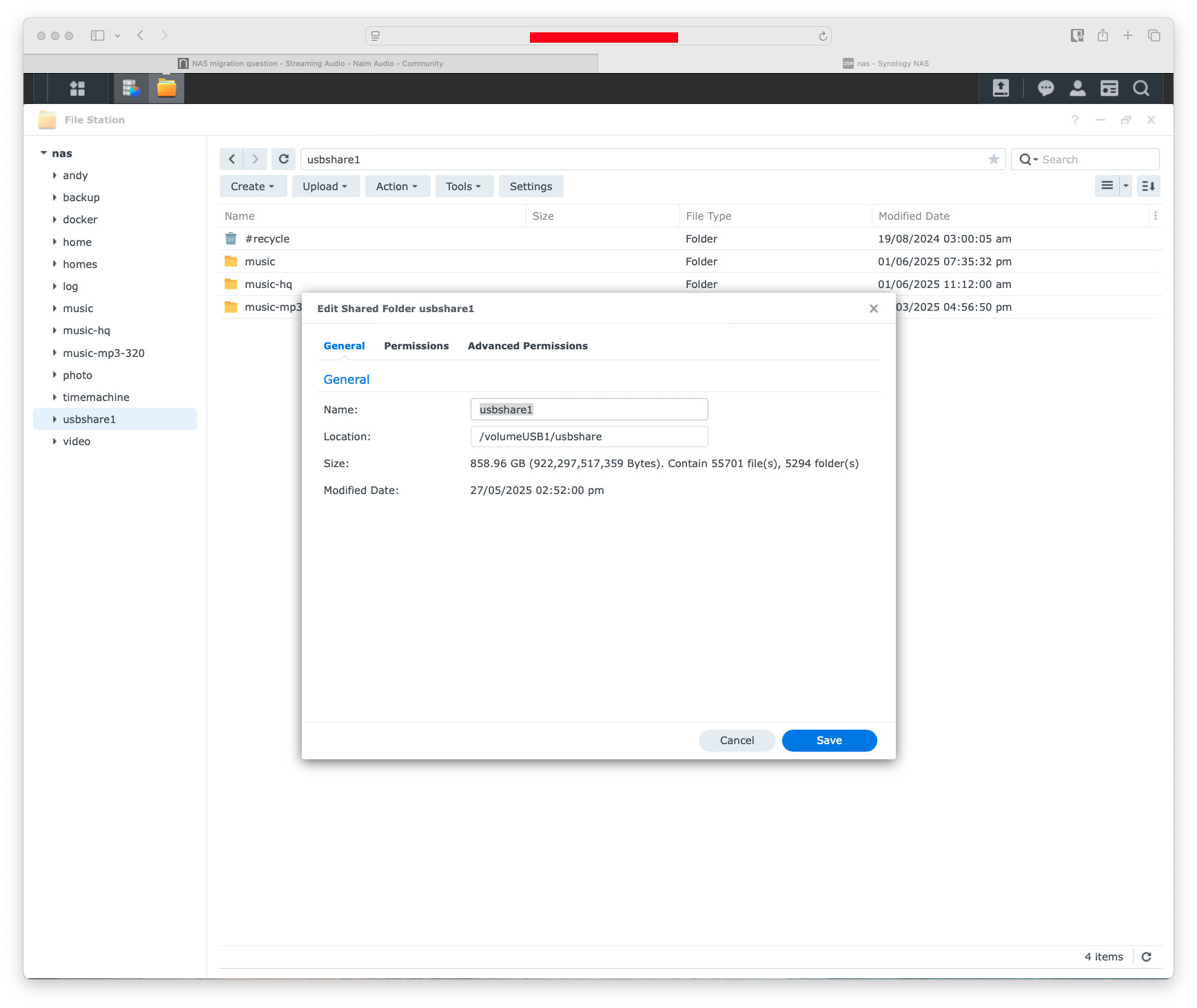
If you plug in a USB drive it will mount the USB as usbshare1.

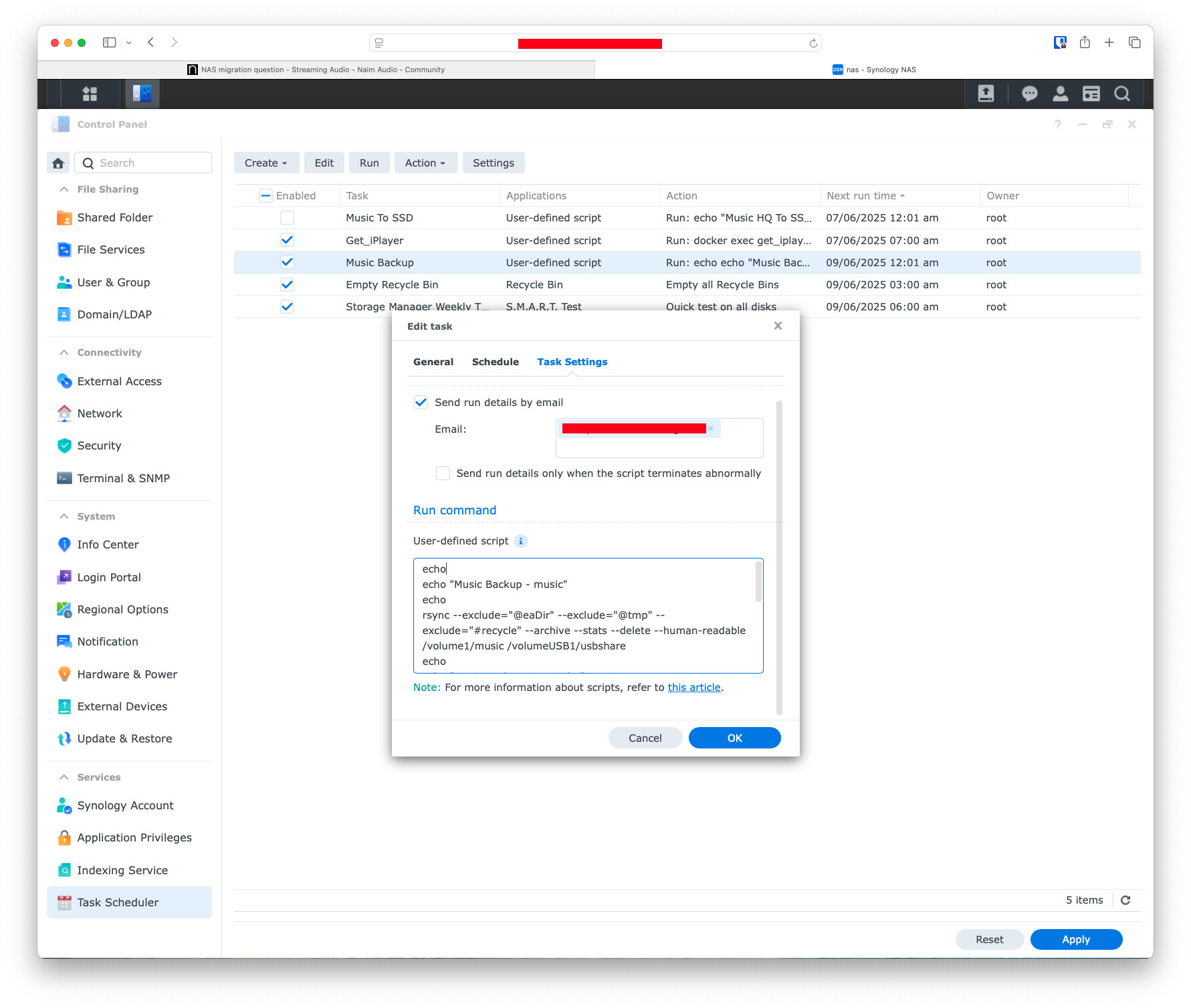
Go into Task Scheduler, create a task to back up your media and schedule it if you want it to run automatically, I’d check it works first.

My user defined script reads as follows:-

echo
echo "Music Backup - music"
echo
rsync --exclude="@eaDir" --exclude="@tmp" --exclude="#recycle" --archive --stats --delete --human-readable  /volume1/music /volumeUSB1/usbshare
echo
echo "Music Backup - music-hq"
echo
rsync --exclude="@eaDir" --exclude="@tmp" --exclude="#recycle" --archive --stats --delete --human-readable  /volume1/music-hq /volumeUSB1/usbshare
echo
echo "Music Backup - music-mp3-320"
echo
rsync --exclude="@eaDir" --exclude="@tmp" --exclude="#recycle" --archive --stats --delete --human-readable  /volume1/music-mp3-320 /volumeUSB1/usbshare
echo

The rsync command will duplicate exactly what is in the folders, if a directory on the NAS is deleted it will be remnoved from the USB drive.

I can’t say that I understand that!

The Plus series have all been good, imho - nice choice. You can run little servers, try stuff in Docker containers (like a Plex server, eg). Fun.

Yes, when you insert and reformat your previous HDD in Slot 2, you can add it to the Storage Pool so that it knows to be part of the Hybrid RAID.

Another option, if you can spend a bit, would be to buy a new HDD and add that to your new Synology. Then you can leave your existing Drive2 in the QNAP, move that somewhere else in your house with a network connection, and use it to do a network backup of the Synology. Note that if you go this route, you could “future proof” your purchase by getting a larger size HDD… the extra space won’t be super useful now, but later on, if you replace the original Slot1 drive with a bigger one too, then the Hybrid Array can be expanded to use all the space. That’s the real advantage of the Hybrid Array, since it manages all that for you and keeps everything sync’d even while it’s expanding the size of the pool and the volume.

I haven’t used USB for differential backup, tbh, but the application you want for that is Hyper Backup. (Edit: it wraps up all the sync and chron tasks shared by nog!) That’s the same thing you’ll use if you want to do a backup across your network to the QNAP or even into the Cloud using your MS OneDrive or whatever you might have…although the CloudSync app makes the latter really easy.

As an aside, you can also go the other way, and create a local backup of your MS OneDrive on your new DS224+ … which I find reassuring and pretty convenient. That’s when thinking about larger HDDs becomes useful: all your photos and data take up more room than just your music files.

Lastly, since you’re an Apple person, you should know that it’s really straightforward to use your new DS to create TimeMachine backups of your Macs, or use the Photos app to backup your iPhone photos… something for another day, but good to keep in mind.

Best wishes as you explore!

2 Likes

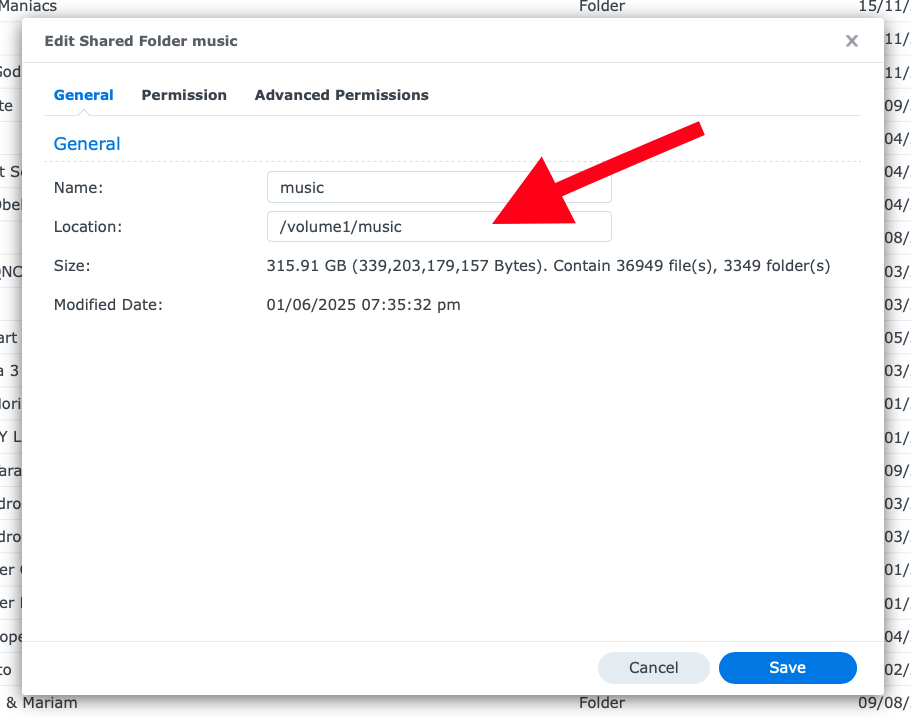
If you go into file station and look at the properties of your music it will give you the absolute path.

You’ll just probably need the following:-

rsync --exclude="@eaDir" --exclude="@tmp" --exclude="#recycle" --archive --stats --delete --human-readable /volume1/music /volumeUSB1/usbshare

I have all the echo commands in to format the txt that I recieve in an email when the task runs.

Task Scheduler has completed a scheduled task.


Task: Music Backup
Start time: Fri, 06 Jun 2025 12:03:00 +0100
Stop time: Fri, 06 Jun 2025 12:03:09 +0100
Current status: 0 (Normal)
Standard output/error:

Music Backup - music


Number of files: 40,299 (reg: 36,950, dir: 3,349)
Number of created files: 0
Number of deleted files: 0
Number of regular files transferred: 0
Total file size: 339.20G bytes
Total transferred file size: 0 bytes
Literal data: 0 bytes
Matched data: 0 bytes
File list size: 0
File list generation time: 0.001 seconds
File list transfer time: 0.000 seconds
Total bytes sent: 1.65M
Total bytes received: 124.58K

sent 1.65M bytes  received 124.58K bytes  322.12K bytes/sec
total size is 339.20G  speedup is 191,463.36

Music Backup - music-hq


Number of files: 20,353 (reg: 18,439, dir: 1,914)
Number of created files: 14 (reg: 13, dir: 1)
Number of deleted files: 0
Number of regular files transferred: 14
Total file size: 580.53G bytes
Total transferred file size: 616.73M bytes
Literal data: 616.73M bytes
Matched data: 0 bytes
File list size: 40.17K
File list generation time: 0.001 seconds
File list transfer time: 0.000 seconds
Total bytes sent: 617.73M
Total bytes received: 63.38K

sent 617.73M bytes  received 63.38K bytes  137.29M bytes/sec
total size is 580.53G  speedup is 939.69

Music Backup - music-mp3-320


Number of files: 370 (reg: 339, dir: 31)
Number of created files: 0
Number of deleted files: 0
Number of regular files transferred: 0
Total file size: 3.18G bytes
Total transferred file size: 0 bytes
Literal data: 0 bytes
Matched data: 0 bytes
File list size: 0
File list generation time: 0.001 seconds
File list transfer time: 0.000 seconds
Total bytes sent: 14.41K
Total bytes received: 1.16K

sent 14.41K bytes  received 1.16K bytes  31.15K bytes/sec
total size is 3.18G  speedup is 203,930.28

Nigel, make sure your new Synology supports hot drive swapping otherwise you’ll have to shut it down before installing the second drive…..

Good luck,

ATB, J

After having a play with Hyper Backup it will be easier to use than my method.

2 Likes

Hyper back up is the way to go. I backup my music folder using Synology C2 online storage. Set it and forget. It works really well.

I would leave a drive in each NAS. Then you have a full hardware and software backup of your library, ready to go if one of them fails. Far more useful than RAID in a dual enclosure.

1 Like

Good luck Nigel!

It’s too late I’m afraid, as the drive is currently reformatting. I’ll be glad to see the back of the Qnap to be honest. I’m sure I’ll find challenges along the way, but fingers crossed it’s going ok at the moment.

Thanks everyone.

4 Likes

This topic was automatically closed 60 days after the last reply. New replies are no longer allowed.